



Why Signers Miss the Right Fields
Introducing: Custom Field Background Colors
Firma.dev now lets you set a custom background color on any field via a single property. Highlight required fields in yellow so they're impossible to miss, color-code fields by recipient so each signer knows exactly where to look, or group related inputs visually so the document reads like a well-designed form instead of a wall of boxes.
Field background colors shipped in v1.11.0 and work on every field type.
What are field background colors?
One Property, Every Field Type
The background_color property accepts a hex color string and applies it as the background fill on any field in a signing document. It works on signatures, initials, text inputs, dates, checkboxes, dropdowns, file uploads, and every other field type Firma.dev supports.
How to Set and Reset Field Colors
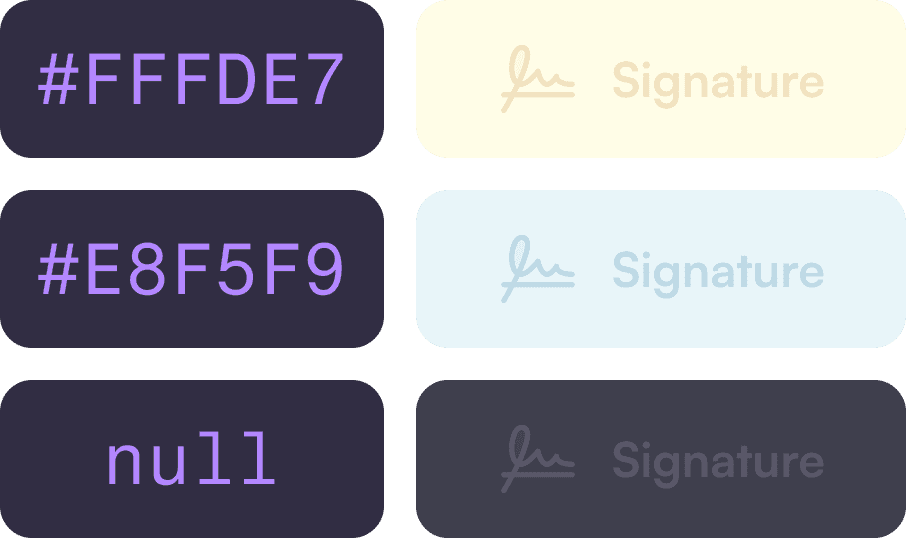
Set background_color to a hex value like "#FFFDE7" (light yellow) or "#E8F5E9" (light green) and the field renders with that background in the signing experience. Set it to null or omit it entirely to use the default apperance.

Supported Formats and Field Types
Both 3-digit (#fff) and 6-digit (#FFFDE7) hex formats are accepted. The property is available on standard field definitions, template fields, signing request fields, and anchor tag definitions.
How to use background colors
Add background_color to any field in your signing request or template creation call:
In this example, Sarah's fields get a light blue background and Mike's get a light orange. When each signer opens the document, their fields are visually distinct from the other person's, even before they start filling anything in.
You can also set background colors on anchor tag definitions if you're using text-based field placement:
Background colors can also be updated on existing fields via PATCH operations, so you can adjust the visual styling without rebuilding the entire signing request.
Practical patterns
Color-coding by signer
Assign a consistent color to each recipient across all their fields. Light blue for signer 1, light orange for signer 2, light green for signer 3. This is the most impactful use case for multi-party documents where signers need to quickly identify which fields belong to them.
Highlighting required fields
If your documents mix required and optional fields, give required fields a subtle yellow highlight (#FFFDE7) and leave optional fields with the default background. Signers immediately see what they can't skip.
Grouping related fields
Use the same background color on fields that logically belong together, like a set of address fields or a block of employment details. This creates visual grouping without needing to restructure the document layout.
Flagging changes
When sending an updated version of a document for re-signing, highlight the fields that changed since the last version. A light red background (#FFEBEE) on modified fields calls attention to exactly what's different.
API reference
The background_color property is available on these schemas: Field, TemplateField, SigningRequestField, and AnchorTag.
Type: string | null. Accepts hex color values in 3-digit or 6-digit format with the # prefix. Set to null or omit to use the default field appearance. Invalid hex values will return a validation error.
The property is accepted on signing request creation (POST /signing-requests), template creation (POST /templates), and update operations (PUT and PATCH on both signing requests and templates).
See the API changelog for the complete v1.11.0 schema reference.
Design tips
Stick to light pastels for field backgrounds
Dark colors make field text unreadable, and saturated colors look aggressive on a professional document. Good starting points: #E3F2FD (blue), #E8F5E9 (green), #FFF3E0 (orange), #FFFDE7 (yellow), #F3E5F5 (purple), #FFEBEE (red).
Keep your color scheme consistent across documents
If signer 1 is always blue and signer 2 is always orange, recipients learn the pattern and move through documents faster over time.
For accessibility, don't rely on color alone to communicate meaning
Background colors should reinforce field labels and instructions, not replace them. A field highlighted in yellow still needs a clear label explaining what to enter.
